
- Posts: 237
- Thank you received: 0
Editing colour- Cellphone photos
Rendering Error in layout Widget/Module: array_unshift(): Argument #1 ($array) must be of type array, null given. Please enable debug mode for more information.
Less
More
15 years 9 months ago - 15 years 9 months ago #8929
by JoNeS
You can't be ready to Rock, if you aren't ready to Roll
Водка-матерям молока
Editing colour- Cellphone photos was created by JoNeS
Not everyone owns or has access to a digital camera, but majority now days have cellphones with camera functions.
Most phones have decent megapixel quality but the colour of the photo, in most situations can make an amazing shot look a bit off balance in the colour department, even if you set the white balance correctly and have the correct lighting.
If you have Photoshop this can be fixed quite nicely using a range of functions like levels, colour balance, curves etc, but not everyone has access to Photoshop either.
An alternative is Microsof Office Picture which a lot of users may have access to.
It has minimal funtionality compared to other image editing software but can help
I have both photoshop and a camera but here are few steps to help you out if you have neither
Most phones have decent megapixel quality but the colour of the photo, in most situations can make an amazing shot look a bit off balance in the colour department, even if you set the white balance correctly and have the correct lighting.
If you have Photoshop this can be fixed quite nicely using a range of functions like levels, colour balance, curves etc, but not everyone has access to Photoshop either.
An alternative is Microsof Office Picture which a lot of users may have access to.
It has minimal funtionality compared to other image editing software but can help
I have both photoshop and a camera but here are few steps to help you out
if you have neither You can't be ready to Rock, if you aren't ready to Roll
Водка-матерям молока
Last edit: 15 years 9 months ago by JoNeS.
Please Log in to join the conversation.
Less
More
- Posts: 237
- Thank you received: 0
15 years 9 months ago - 15 years 9 months ago #8930
by JoNeS
You can't be ready to Rock, if you aren't ready to Roll
Водка-матерям молока
Replied by JoNeS on topic Re:Editing colour- Cellphone photos
I have Office 2003 and will use the Picture Manager shipped with it for this tutorial.
I will be using Angel's photo for this because it I think it as an awesome photo and one of my favourites but, as Angel stated, taken on a cellphone.
Most average phone cameras will shoot images with a lot of blue.

I will be using Angel's photo for this because it I think it as an awesome photo and one of my favourites but, as Angel stated, taken on a cellphone.
Most average phone cameras will shoot images with a lot of blue.
You can't be ready to Rock, if you aren't ready to Roll
Водка-матерям молока
Attachments:
Last edit: 15 years 9 months ago by JoNeS.
Please Log in to join the conversation.
Less
More
- Posts: 237
- Thank you received: 0
15 years 9 months ago - 15 years 9 months ago #8931
by JoNeS
You can't be ready to Rock, if you aren't ready to Roll
Водка-матерям молока
Replied by JoNeS on topic Re:Editing colour- Cellphone photos
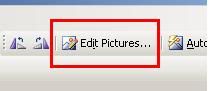
Open your image in Picture manager and select edit pictures from the top menu bar:
and then select color

we now have to balance the blue in the image with red using the hue and saturation settings.
Set the amount to quite a low value. I used 15 for this example.
You need to try balance the spectrum using Hue.
The image is blue, so we will move the marker to orange. Why orange you may ask? because they are complmentary colours on the HSV colour wheel which is what RGB monitors use. Have look here for more info- complimentary colours
Set the saturatin to low value, as this is the "intesity" of the colour.

and then select color
we now have to balance the blue in the image with red using the hue and saturation settings.
Set the amount to quite a low value. I used 15 for this example.
You need to try balance the spectrum using Hue.
The image is blue, so we will move the marker to orange. Why orange you may ask? because they are complmentary colours on the HSV colour wheel which is what RGB monitors use. Have look here for more info- complimentary colours
Set the saturatin to low value, as this is the "intesity" of the colour.
You can't be ready to Rock, if you aren't ready to Roll
Водка-матерям молока
Last edit: 15 years 9 months ago by JoNeS.
Please Log in to join the conversation.
Less
More
- Posts: 237
- Thank you received: 0
15 years 9 months ago #8932
by JoNeS
You can't be ready to Rock, if you aren't ready to Roll
Водка-матерям молока
Replied by JoNeS on topic Re:Editing colour- Cellphone photos
Once you have reached a satisfactory result, click the green back arrow to return to the
edit options panel.
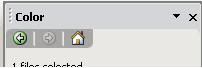
Then select brightness and contrast
You can play around with settings depending on the image. This will make the imaghe brighter or darker and set the contrast between dark and ligh in the image. For this image, I used the settings bellow:
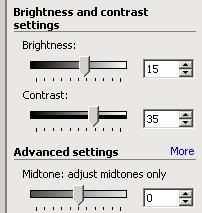
You can adjust the midtones value, but it is not always necessary.
edit options panel.
Then select brightness and contrast
You can play around with settings depending on the image. This will make the imaghe brighter or darker and set the contrast between dark and ligh in the image. For this image, I used the settings bellow:
You can adjust the midtones value, but it is not always necessary.
You can't be ready to Rock, if you aren't ready to Roll
Водка-матерям молока
Please Log in to join the conversation.
Less
More
- Posts: 237
- Thank you received: 0
15 years 9 months ago - 15 years 9 months ago #8933
by JoNeS
You can't be ready to Rock, if you aren't ready to Roll
Водка-матерям молока
Replied by JoNeS on topic Re:Editing colour- Cellphone photos
Here is the final result. Not a great difference, but a little better considering the limitations of the program

I hope this tutorial will help and is usefull.
I hope this tutorial will help and is usefull.
You can't be ready to Rock, if you aren't ready to Roll
Водка-матерям молока
Last edit: 15 years 9 months ago by JoNeS.
Please Log in to join the conversation.
- Schalk du Plessis
-

- Offline
- Banned
-

- bird is the word
Less
More
- Posts: 1283
- Thank you received: 53
15 years 9 months ago #8934
by Schalk du Plessis
Replied by Schalk du Plessis on topic Re:Editing colour- Cellphone photos
Very nice tutorial Jones.
I reckon a lot of people will be able to use this.
I reckon a lot of people will be able to use this.
Please Log in to join the conversation.
Time to create page: 0.503 seconds